FDO / WORKSPACE HISTORY
Try the idea.
Keep a way back.
Workspace snapshots preserve local versions of your plugin’s source and editor state. Make a restore point before changing a layout, refactoring a handler or trying an AI edit.
1. Capture a useful checkpoint.
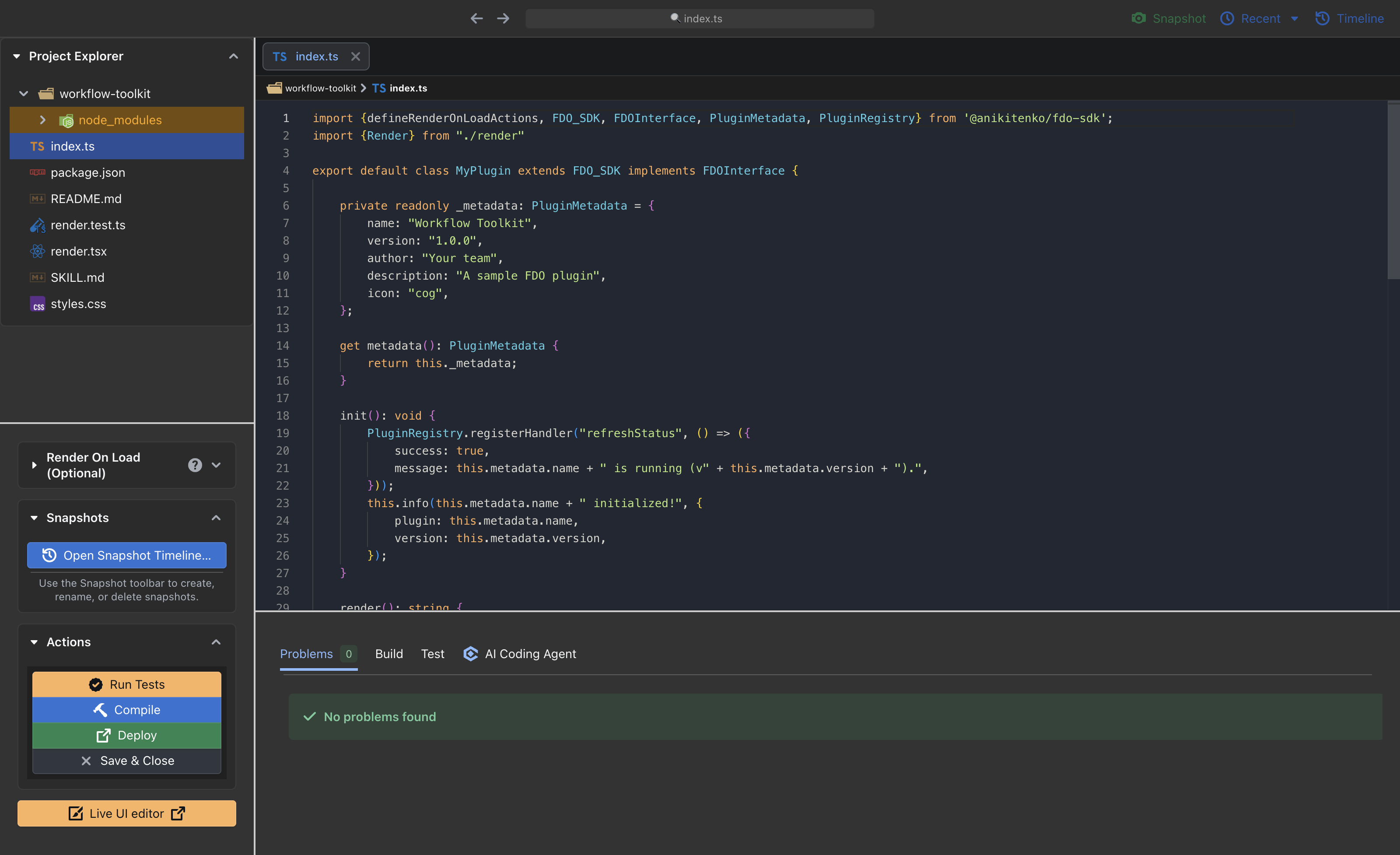
Open your plugin in the built-in editor and choose Snapshot. You can also open Timeline and select Create snapshot. Rename it from Recent or the timeline so you can recognize it later—for example, “Before changing the dashboard layout”.
2. Review history before switching.
Open Timeline in the toolbar or Open Snapshot Timeline… in the Snapshots sidebar. Search versions, identify the current snapshot and select the version to restore.
If you have changes since the last snapshot, FDO asks you to create one before switching if you want to keep your current changes and open tabs. Follow the confirmation carefully: switching restores the selected workspace’s files and editor state.
Snapshots are local editor history. Keep your project in Git or a separate backup for durable recovery. Deleting a snapshot removes that restore point.
3. Use drafts for visual iteration.
Live UI has its own draft Undo/Redo before you apply changes. Applying a reviewed change creates a restore point in the connected workspace. Check the reported restore point and return to editor history if you need to revisit it.
A source restore does not roll back a deployed plugin, a remote command or cloud resources. Test the restored source and deploy it explicitly when you want the running plugin to use that version.
See the workspace snapshot documentation or Live UI guide for more detail.